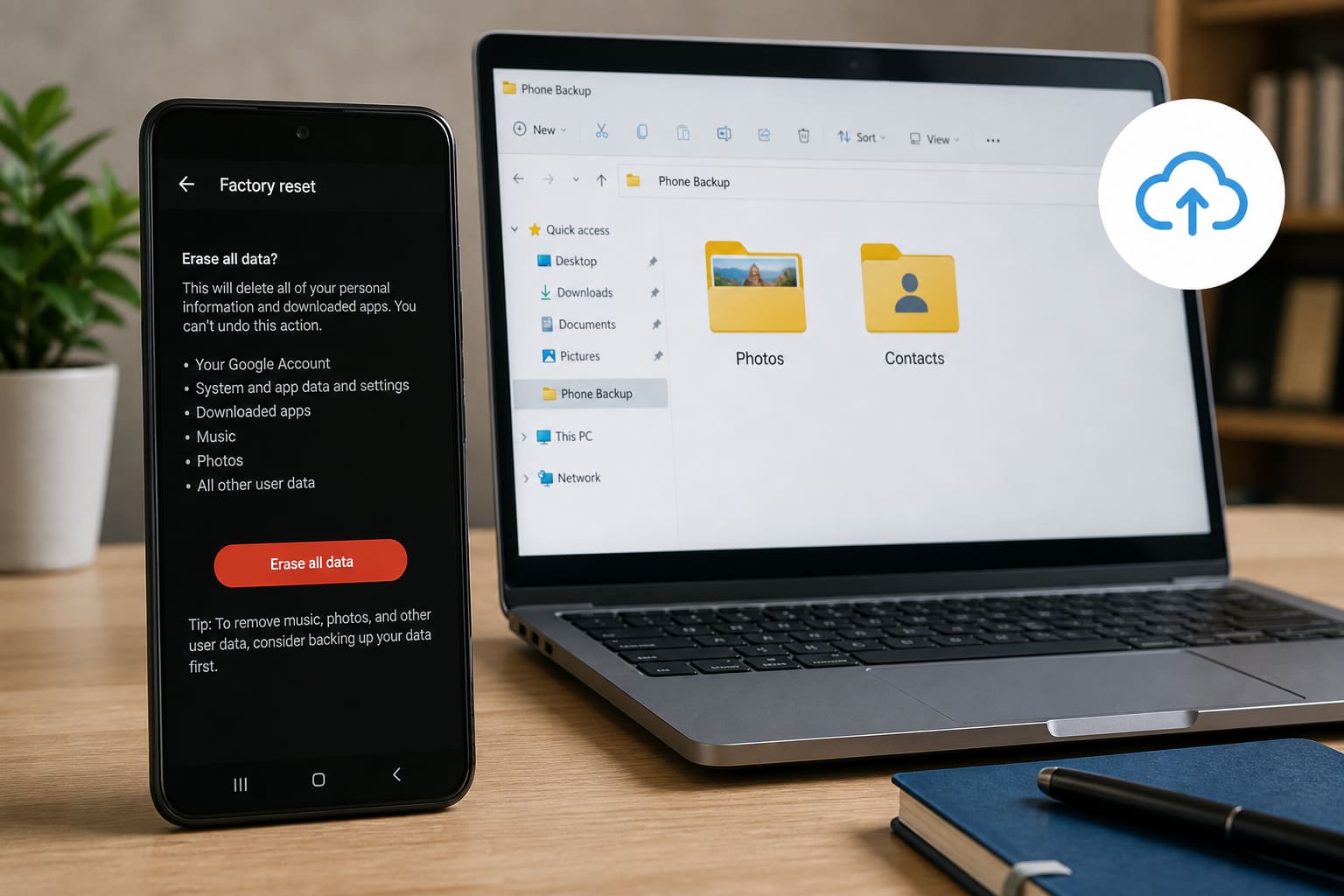
A factory reset can fix a laggy Android, clear stubborn malware, or prepare a phone for sale. Done wrong, it also wipes photos and WhatsApp forever.
Use this checklist before you tap “Erase all data.”
When Factory Reset Helps
- Phone is slow after you’ve already cleared cache and uninstalled junk
- Random crashes / boot loops
- You’re selling or giving the phone away
- Suspicious apps you can’t remove
Reset is not the first step for low storage alone — free space first.
Backup Checklist (Do This First)
| What | How |
|---|---|
| Photos & videos | Google Photos backup or copy to laptop/USB |
| WhatsApp chats | WhatsApp → Settings → Chats → Chat backup (Google Drive) |
| Contacts | Confirm they’re synced to Google Account |
| Notes / files | Drive, Documents, Downloads folders |
| App logins | Know passwords / use a password manager |
Turn on Wi‑Fi for Google and WhatsApp backups — mobile data can fail mid-upload.
How to Factory Reset (Settings Method)
Steps vary slightly by brand (Samsung, Tecno, Infinix, Xiaomi), but the idea is the same:
- Open Settings
- Search for Reset / Factory reset / Erase all data
- Choose Factory data reset
- Confirm with PIN / pattern / Google account if asked
- Wait — first boot after reset can take several minutes
Recovery Mode Reset (If Phone Won’t Boot)
If Settings won’t open, use recovery mode (buttons differ by brand — usually Volume + Power). Choose Wipe data/factory reset, then reboot.
Only do this if you understand the menus — wrong choices can brick some devices.
After Reset
- Connect to Wi‑Fi
- Sign into Google
- Restore apps from backup if offered
- Restore WhatsApp from Drive backup
- Re-enable Photos backup
Factory Reset — Quick FAQ
Will reset remove the Google account lock?
No. Factory reset does not bypass FRP (Factory Reset Protection). You still need the previous Google account after reset on modern Androids.
Does it fix overheating?
Sometimes, if a bad app was the cause. Hardware heat needs cleaning/usage changes.
Can I reset without losing photos?
Only if you backed them up first. Reset wipes internal storage.
Sources / Verify With
- Google Android Help — reset & backup guides
- Your phone maker’s support site (Samsung / Transsion / Xiaomi)
Original Sen Gideons News Studio editorial. Menus differ by Android version and brand skin.