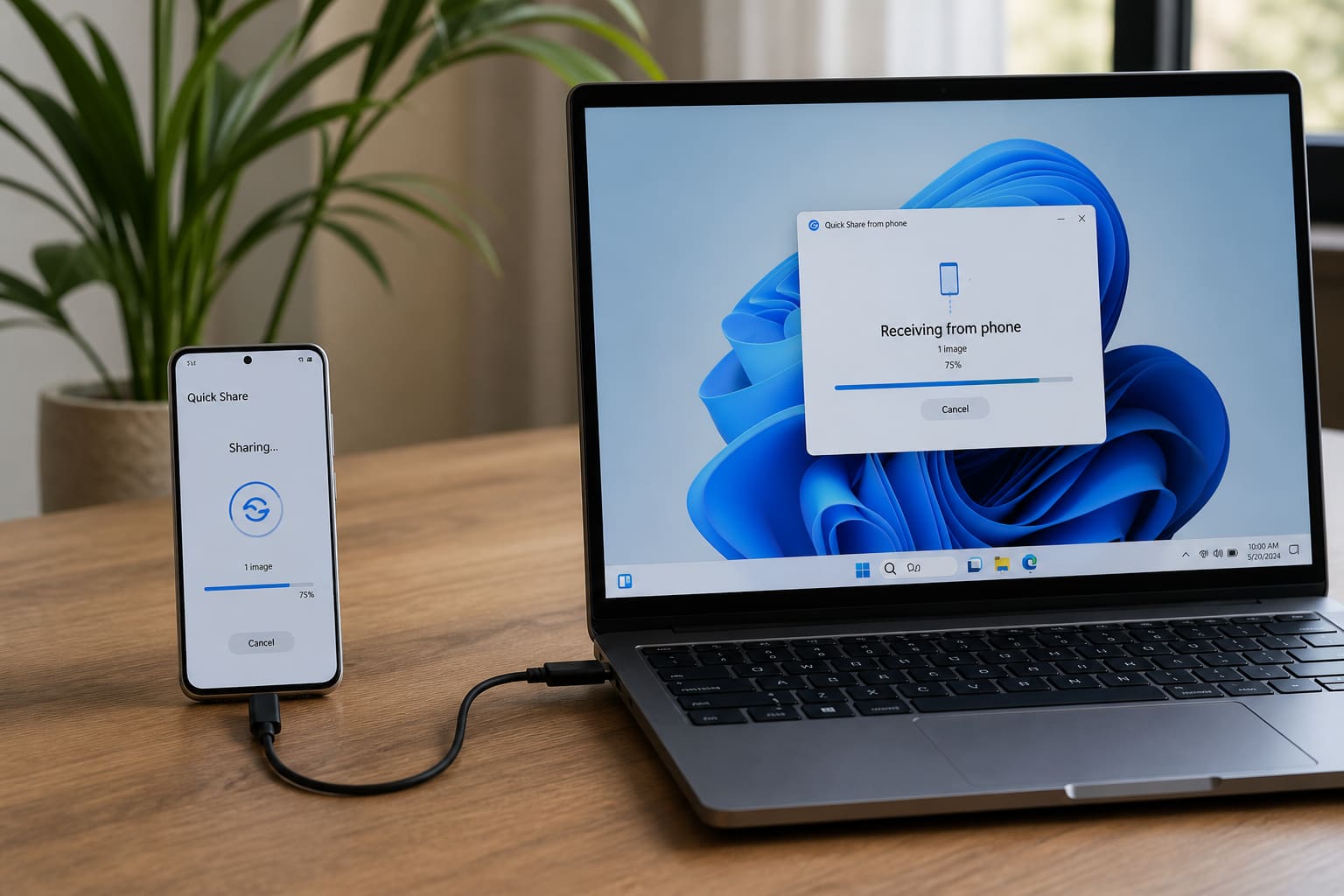
Moving files from phone to PC shouldn’t require Telegram self-chat forever. Pick the method that matches your devices.
Method Comparison
| Method | Best for | Needs |
|---|---|---|
| USB cable | Large videos, reliable | Cable + USB mode |
| Quick Share / Nearby Share | Android → nearby devices | Bluetooth + Wi‑Fi |
| Google Drive / OneDrive | Anywhere, any device | Internet |
| Email / WhatsApp to self | Tiny files | Internet |
| SD card / OTG | Offline bulk | Compatible hardware |
USB Cable (Most Reliable)
- Unlock phone
- Plug into laptop
- On Android, set USB mode to File transfer / MTP
- Open the phone in File Explorer (Windows) or Android File Transfer (older Macs)
- Copy
DCIM,Download, or WhatsApp media folders
If the PC doesn’t see the phone: try another cable (many charge-only cables fail), another USB port, or install brand drivers.
Wireless: Quick Share / Nearby Share
Samsung Quick Share and Google Nearby Share / Quick Share can send files to a Windows PC if the companion app is installed and both devices are discoverable.
Keep phones unlocked and close. Large files prefer same Wi‑Fi network.
Cloud (Works Everywhere)
Upload from phone → download on PC. Slow on weak data, but perfect when devices aren’t in the same room.
Phone to PC — FAQ
Why doesn’t my iPhone show in File Explorer?
iPhones don’t mount like Android. Use Finder (Mac), the Apple Devices app / iTunes (Windows), AirDrop (Apple ecosystem), or iCloud/Drive.
Is Bluetooth file transfer good?
Fine for small files. Painful for videos.
Is WhatsApp Document chat safe for IDs?
Avoid sending national ID / bank docs through casual chats when possible — use encrypted Drive links with care.
Related Guides
Sources / Verify With
- Google Nearby Share / Quick Share help
- Samsung Quick Share support
Original Sen Gideons News Studio editorial. Brand names and menus change with OS updates.