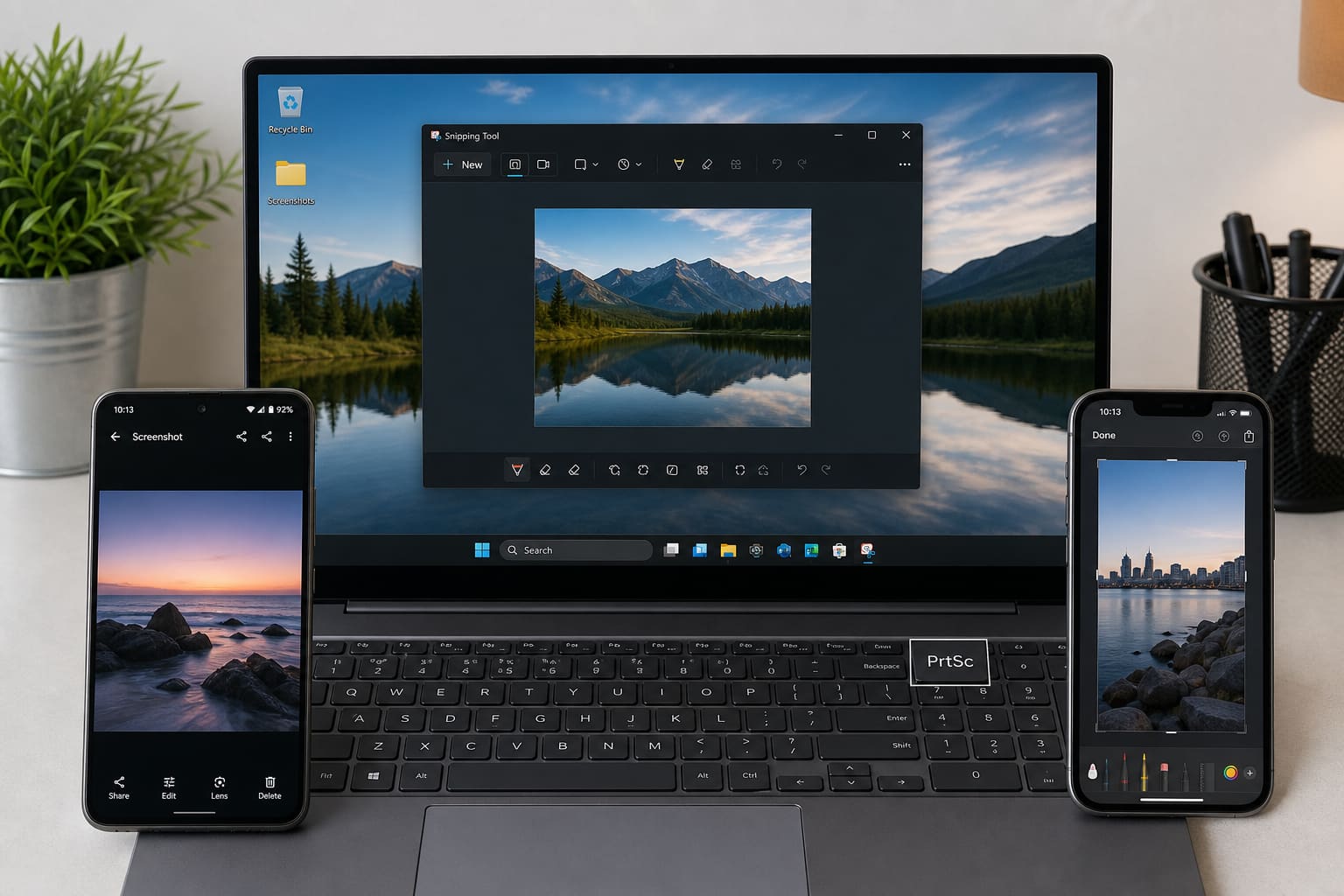
Need proof of a payment, error message, or assignment? Here’s the screenshot cheat sheet for PC and mobile.
Windows
| Method | Keys |
|---|---|
| Best (region select) | Win + Shift + S |
| Full screen to clipboard | PrtSc |
| Active window | Alt + PrtSc |
| Save full screen file | Win + PrtSc (saves to Pictures → Screenshots) |
Paste clipboard shots into WhatsApp Web, Paint, or Word with Ctrl + V.
Android
Most phones:
- Volume Down + Power together briefly
Also check:
- Palm swipe (Samsung)
- Three-finger swipe (many Tecno/Infinix/Xiaomi)
- Quick Settings tile
Screenshots usually land in Gallery / Photos → Screenshots.
iPhone
- Face ID models: Side + Volume Up
- Home button models: Side/Top + Home
Edit with Markup immediately, or find them in Photos.
Scrolling / Long Screenshots
Samsung, Xiaomi, and many Android skins offer Scroll capture after a normal screenshot — useful for long chats and webpages.
Windows needs Snipping Tool / third-party tools for long pages.
Screenshots — FAQ
Where did my Windows screenshot go?
Clipboard methods need paste. Win + PrtSc saves to Pictures\Screenshots.
Can I screenshot banking apps?
Some apps block screenshots for security — that’s intentional.
Related: screen recording?
See How to Record Your Phone Screen.
Sources / Verify With
- Microsoft Snipping Tool help
- Apple / Google screenshot support pages
Original Sen Gideons News Studio editorial. Gestures vary by brand skin.