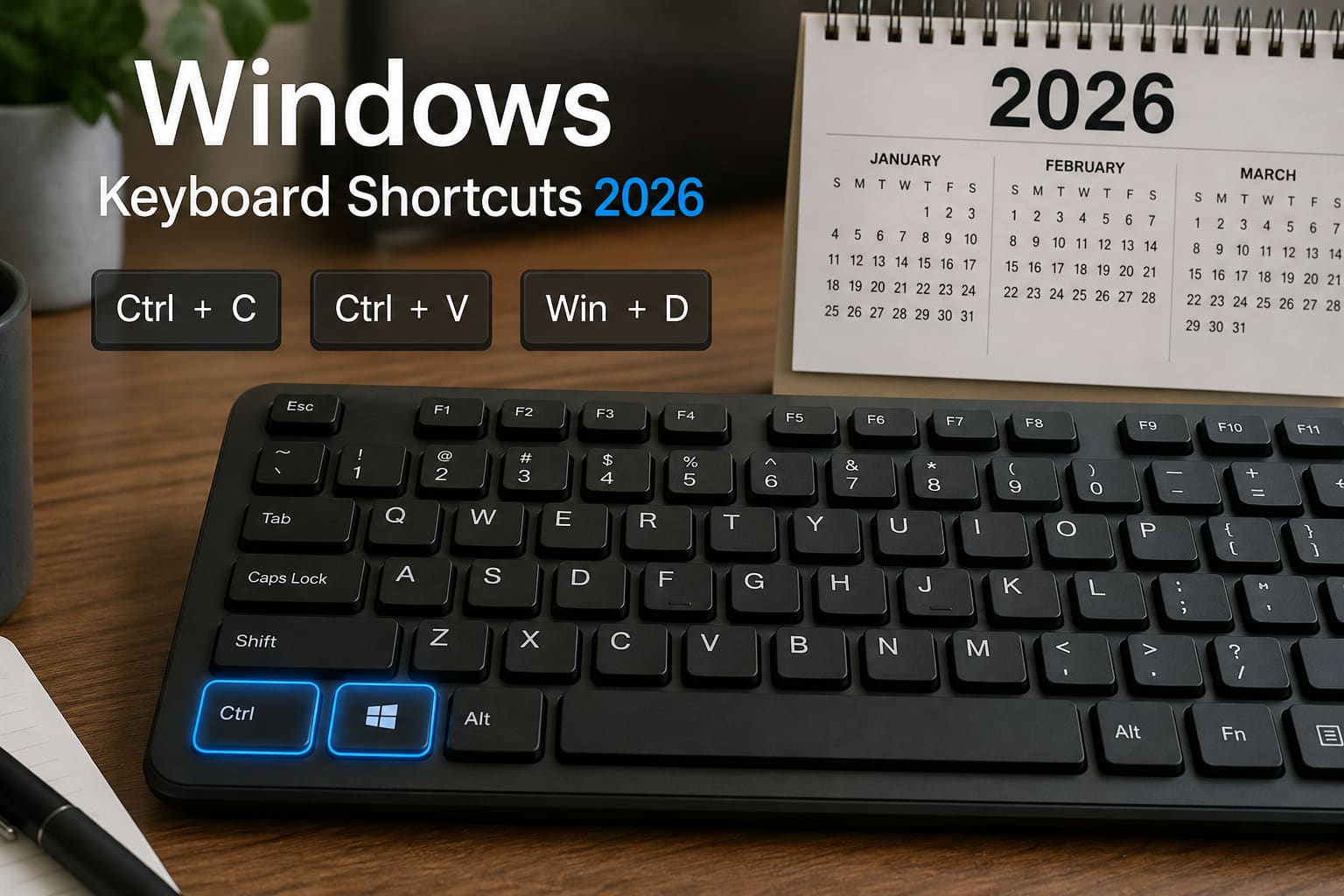
Learning a handful of Windows keyboard shortcuts saves more time than most “productivity apps.”
Memorise these first.
Everyday Essentials
| Shortcut | What it does |
|---|---|
Ctrl + C / Ctrl + V / Ctrl + X | Copy / Paste / Cut |
Ctrl + Z / Ctrl + Y | Undo / Redo |
Ctrl + A | Select all |
Ctrl + S | Save |
Alt + Tab | Switch apps |
Win + D | Show desktop |
Win + L | Lock PC (do this in cyber cafés) |
Alt + F4 | Close current window |
Screenshots & Clipboard
| Shortcut | What it does |
|---|---|
Win + Shift + S | Snipping tool (best) |
PrtSc | Full screen to clipboard |
Win + V | Clipboard history (enable once) |
Power User Shortcuts
| Shortcut | What it does |
|---|---|
Ctrl + Shift + Esc | Task Manager |
Win + I | Settings |
Win + E | File Explorer |
Win + Arrow keys | Snap windows left/right |
Win + Ctrl + D | New virtual desktop |
Win + Ctrl + Left/Right | Switch desktops |
Win + . | Emoji panel |
File Explorer Speed
Ctrl + N— new Explorer windowAlt + Up— go up one folderF2— rename fileShift + Delete— delete permanently (careful)
Windows Shortcuts — FAQ
Do these work on Windows 10 and 11?
Most do. A few (like widgets) are Windows 11–specific.
What about Mac users?
Mac uses Cmd instead of Ctrl for many of the same ideas.
Can I remake shortcuts?
Yes — PowerToys (Microsoft) lets power users remap keys.
Sources / Verify With
- Microsoft Windows keyboard shortcuts list
Original Sen Gideons News Studio editorial. Layouts can differ on some laptops (Fn keys).