Watch the full tutorial:
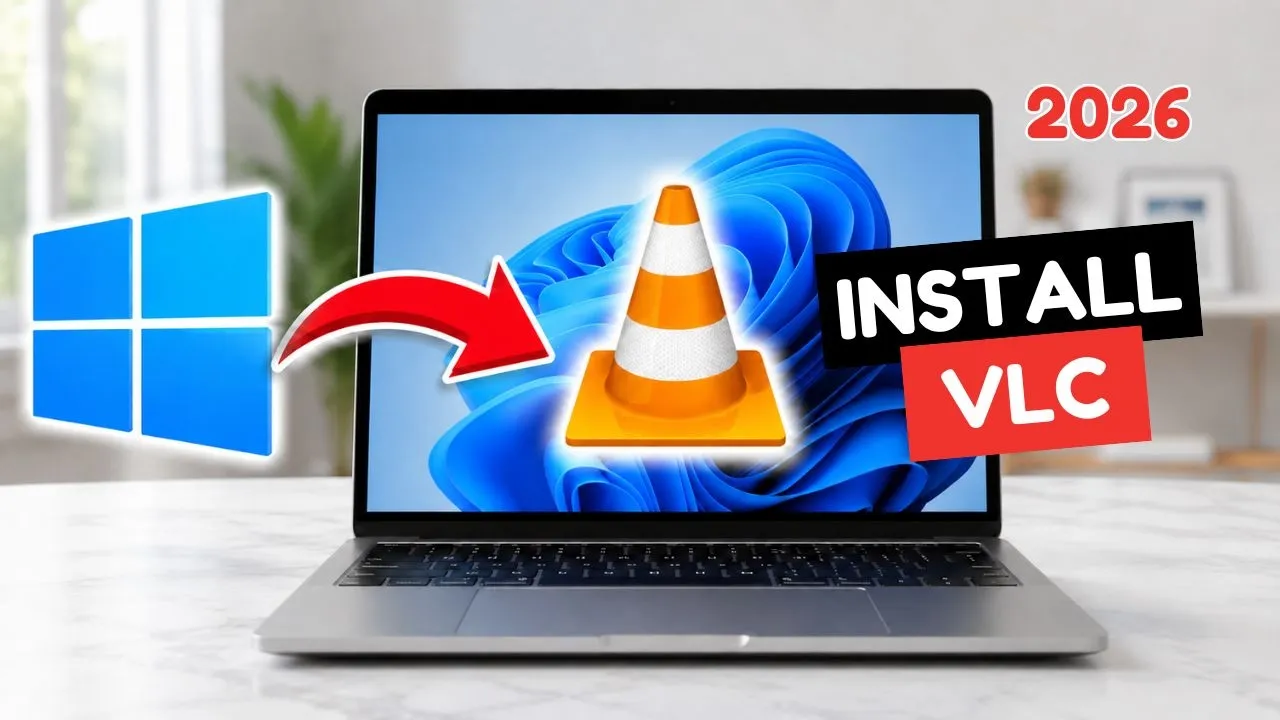
VLC plays almost every video file Windows Media Player refuses. Install it from the VideoLAN site only, then tell Windows to open your video files with it.
Download VLC from VideoLAN
- Open videolan.org/vlc.
- Download the Windows installer. Skip mirror sites and “codec pack” bundles that offer VLC plus extra toolbars. The official installer is enough.
- Run it. Leave the language and the default components selected unless you know you do not want the file-type associations.
- Finish and open VLC once so Windows registers it.
Make VLC the default player
- Open Settings > Apps > Default apps.
- Search for VLC and open it.
- Set VLC as the default for the types you actually play, especially .mp4 and .mkv. You can also choose Set default for the types VLC supports.
On Windows 10 the page is Settings > Apps > Default apps, then Choose default apps by file type. Assign .mp4 and .mkv to VLC.
Double-click a video in File Explorer. It should open in VLC. If it still opens in Films & TV, the file type you clicked is one you did not reassign. Set that extension the same way.
Disclaimer
Sengideons.com does not host any files on its servers. All point to content hosted on third-party websites. Sengideons.com does not accept responsibility for content hosted on third-party websites and does not have any involvement in the same.