
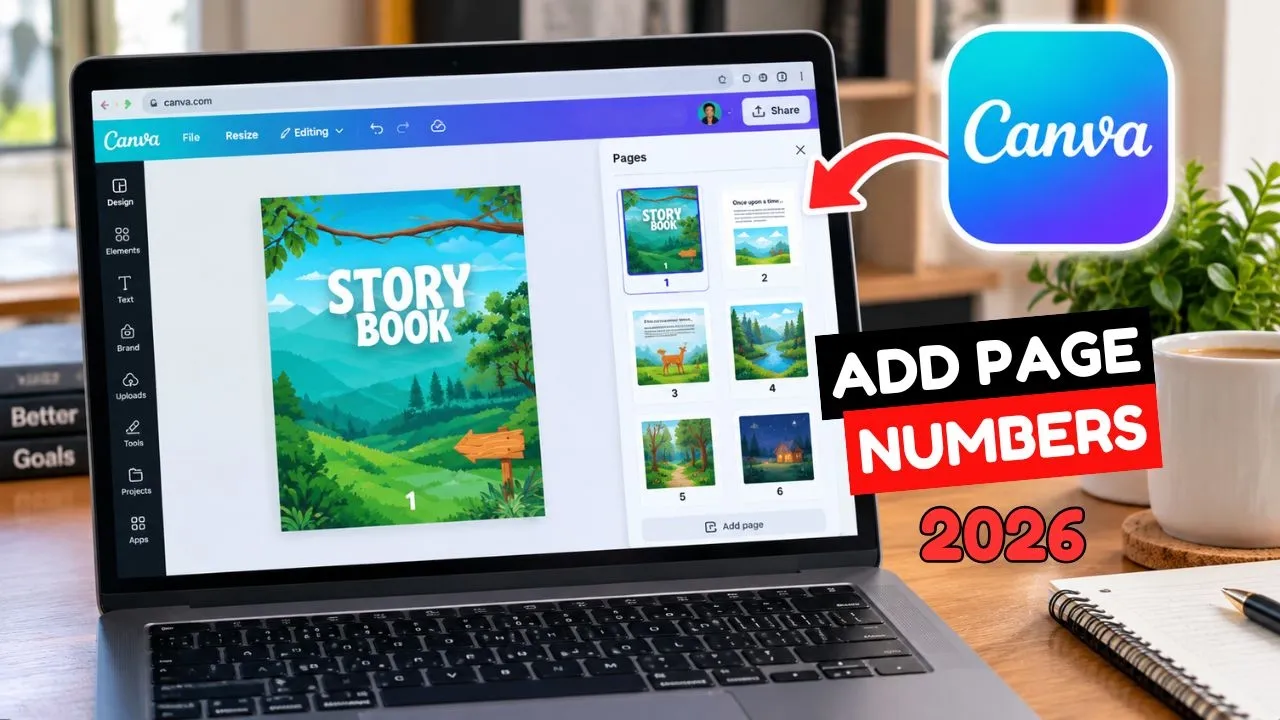
Watch the full tutorial:
Numbering a Canva deck or a PDF by hand falls apart the moment you add a page in the middle. Canva can drop the page number in for you and repeat the style across the document.
If you also need the cedi or euro sign in the same design, the Windows shortcut is in how to type currency symbols in Windows.
Add a page number
- Open the design in Canva.
- Select the page where the number should appear. Put it on a page that already has the footer position you want, usually the first page of the document.
- Open the Text panel.
- Find Page numbers. In some Canva accounts this sits under dynamic text or at the bottom of the Text panel as Add page number.
- Click it. Canva inserts a number on the page.
- Move and style it: font, size, and color. Drag it into the corner or the center of the footer.
Apply it to every page
Styling the first number does not always restyle the others.
- Select the page number you just styled.
- Use Apply to all pages or the position control Canva shows for page numbers, so the same spot and style are used on the rest of the document.
- Scroll the pages. The number should increase on its own.
If a cover should stay blank, select the number on that page and delete it, or exclude the cover in the page-number settings when Canva shows that option. Check the last page before you download. A number sitting under a photo is the usual miss.
Download
Share > Download > PDF, and open the PDF once. Page numbers are part of the design, so they export with the file. They are not added by the PDF viewer.
Disclaimer
Sengideons.com does not host any files on its servers. All point to content hosted on third-party websites. Sengideons.com does not accept responsibility for content hosted on third-party websites and does not have any involvement in the same.