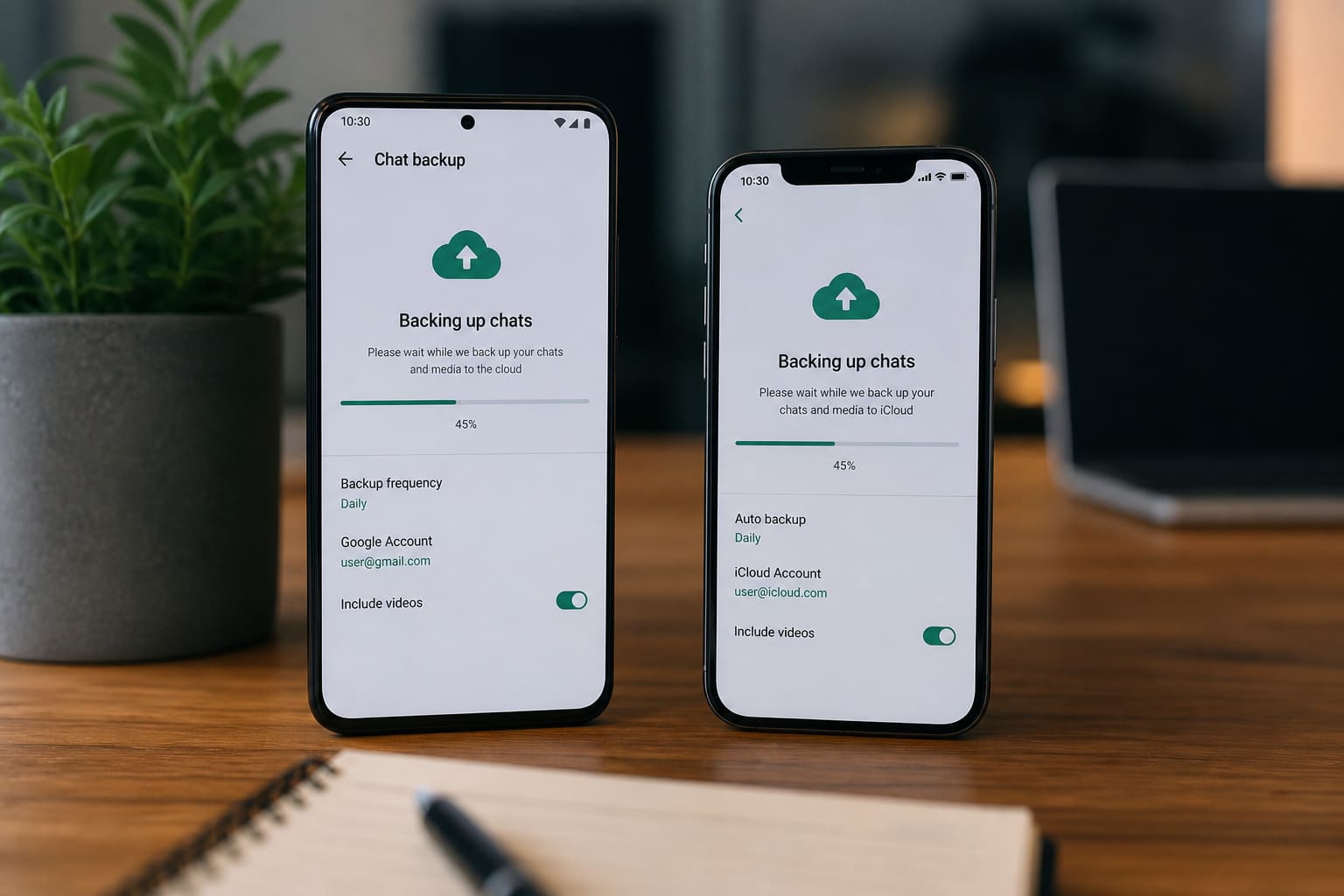
Losing WhatsApp chats hurts — customer orders, family videos, and group history vanish with a dead phone.
Here’s a clear guide to WhatsApp backups on Android and iPhone. Menus shift slightly by app version — follow in-app labels if wording differs.
Before You Back Up
- Connect to stable Wi‑Fi (backups can be large)
- Free up cloud storage (Google account / iCloud)
- Note your phone number and confirm you can receive SMS/calls for verification
- Update WhatsApp from the official store
Android: Google Drive Backup
- Open WhatsApp → Settings → Chats → Chat backup.
- Tap Back up / End-to-end encrypted backup options as shown.
- Choose Google account and backup frequency (daily/weekly).
- Wait until it completes — don’t airplane-mode mid-backup.
Include videos only if you have enough Drive space and patience.
iPhone: iCloud Backup
- Open WhatsApp → Settings → Chats → Chat Backup.
- Back up to iCloud.
- Ensure iCloud has free space (Settings → Apple ID → iCloud storage).
- Keep the phone locked/on Wi‑Fi until finished.
How to Restore on a New Phone
- Install official WhatsApp.
- Verify the same phone number.
- When prompted, choose Restore from Google Drive / iCloud.
- Wait for completion before tapping around aggressively.
If you skip restore or verify a different number, chats may not return.
WhatsApp Backup — Quick Facts
| Platform | Typical cloud |
|---|---|
| Android | Google Drive |
| iPhone | iCloud |
| Must match | Same phone number |
| Best network | Wi‑Fi |
Common Failures (and Fixes)
| Problem | Try this |
|---|---|
| Backup stuck | Stronger Wi‑Fi; free cloud space |
| No restore prompt | Same number + official app; don’t skip too fast |
| Not enough storage | Delete old Drive/iCloud junk; exclude videos |
| Business app migration | Follow official WhatsApp Business backup guidance |
Safety Tips
- Prefer official WhatsApp backups over random “chat export APKs.”
- End-to-end encrypted backup (where available) adds protection — store the password safely.
- For business, also export important invoices/media separately.
FAQ
Are backups free?
WhatsApp backup features are free, but Google Drive / iCloud storage limits apply.
Can I restore Android chats to iPhone easily?
Cross-platform moves are trickier and depend on current official transfer tools — verify WhatsApp’s latest method before switching ecosystems.
Do status updates restore?
Focus on chats/media; status content is temporary by design.
Sources / Verify With
- Official WhatsApp Help Center backup articles
- Google Drive / Apple iCloud storage settings
This article is original editorial for Sen Gideons News Studio. App UI labels change with updates.