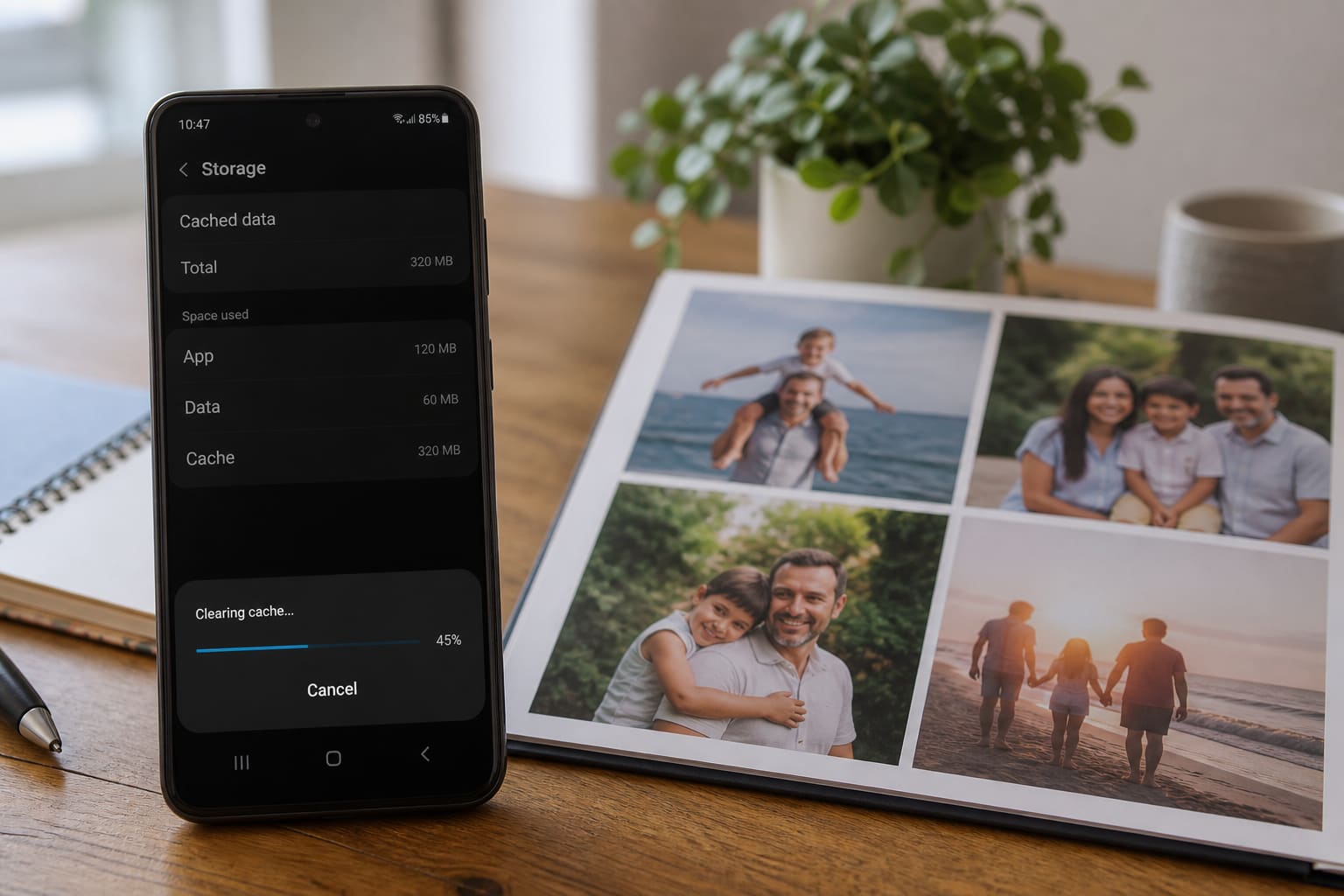
Cache is temporary app data. Clearing it is one of the safest ways to free Android storage — it does not delete your photos.
Here’s the clean way to do it.
Cache vs Data (Don’t Mix Them Up)
| Action | Deletes |
|---|---|
| Clear cache | Temporary files only |
| Clear storage / data | App logins, settings, offline downloads |
| Uninstall | The whole app |
When in doubt, clear cache, not data.
Clear Cache for One App
- Settings → Apps → [App name]
- Storage
- Clear cache
Good targets: Chrome, Facebook, Instagram, TikTok, WhatsApp (cache only), Google Play Store.
Free Storage Without Touching Photos
- Settings → Storage — see what’s using space
- Delete Downloads clutter (APKs, old PDFs)
- Clear WhatsApp Statuses / View once leftovers carefully via WhatsApp storage tools
- Move videos to Google Photos / laptop
- Uninstall unused apps and games
- Remove offline maps / Netflix downloads you don’t need
“Storage Almost Full” Warning Loop
If Android keeps nagging:
- Reboot after clearing cache
- Update Play System / OS when possible
- Avoid “cleaner” apps from random APK sites — many are junk
Android Cache — FAQ
Will clearing WhatsApp cache delete chats?
No. Cache ≠ chat backup. Still avoid Clear data unless you know what you’re doing.
How often should I clear cache?
When storage is tight or an app misbehaves — not every day.
Does SD card help?
Yes for media if your phone supports adoptable/portable storage properly. Apps still need internal space.
Related Guides
Sources / Verify With
- Google Android Help — free up space
- Your phone brand’s storage tips
Original Sen Gideons News Studio editorial. Paths differ on Samsung One UI, Xiaomi HyperOS, Tecno/Infinix HiOS.