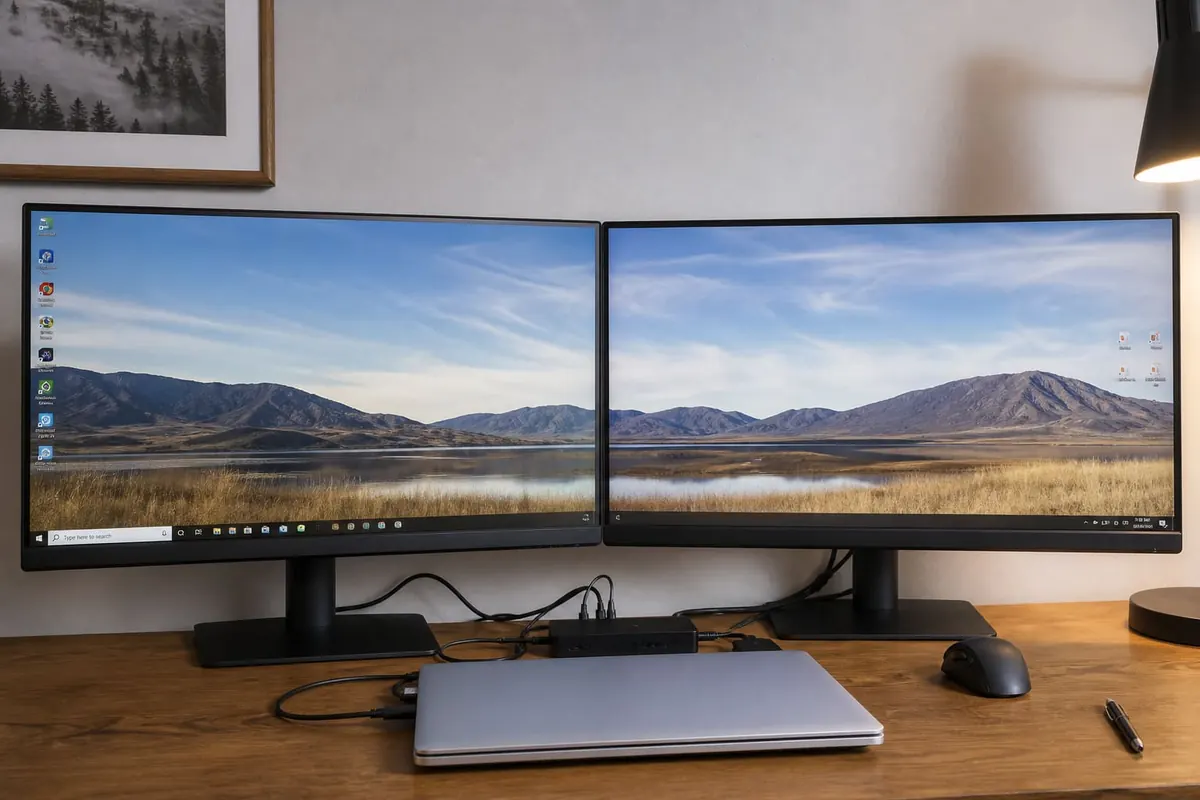
Dual monitors on Windows boost spreadsheet, coding, and content workflows — once cables and display settings cooperate. Most setups need the right ports and a minute in Display Settings.
What you need
- A PC/laptop with a free video output (HDMI, DisplayPort, USB-C/Thunderbolt)
- Compatible cable/adapter
- A second monitor with power
Setup steps
- Connect the monitor and power it on.
- Right-click desktop → Display settings.
- Detect displays if needed.
- Choose Extend (not only Duplicate) for workspace.
- Arrange the rectangles to match physical left/right.
- Set resolution and scale per monitor.
- Pick which display is main.
Troubleshooting
- Wrong cable type (charge-only USB-C hubs fail)
- GPU drivers outdated
- Laptop lid closed settings for external-only use
- Refresh rate mismatches
Related productivity
Excel, shortcuts (Win + Arrow snapping helps).
FAQ
Can USB ports drive monitors?
Only with proper DisplayLink/USB-C Alt Mode hardware — not every USB-A port.
Is 4K required?
No — resolution matching your eyes/budget is enough.
Laptop + monitor lag?
Check cables and close heavy background apps.
Plug in a compatible cable, extend displays in Windows settings, and arrange screens to match your desk. Dual monitors are a productivity multiplier once the cable is correct.
Disclaimer
Sengideons.com does not host any files on its servers. All point to content hosted on third-party websites. Sengideons.com does not accept responsibility for content hosted on third-party websites and does not have any involvement in the same.