Watch the full tutorial:
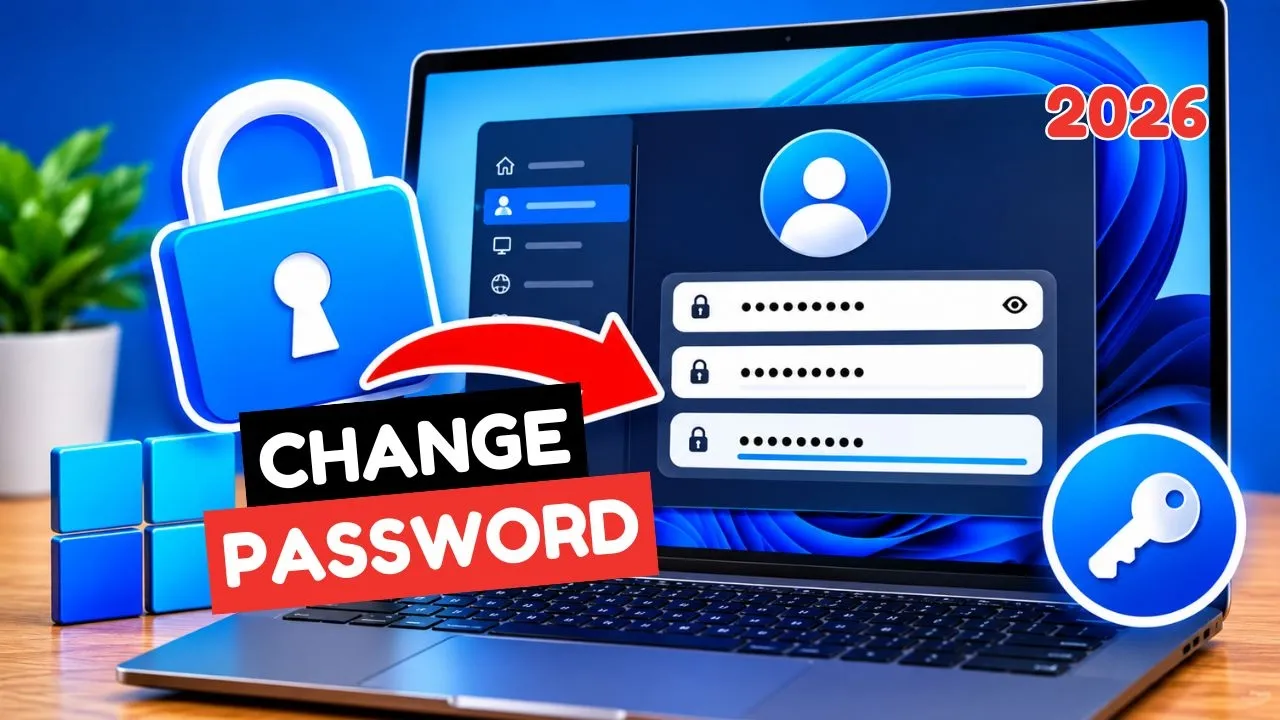
A Windows password keeps a laptop private when it is shared at home, left in a classroom, or connected to a Microsoft account. This guide shows how to change a password that is already set on Windows 10 and Windows 11.
Setting a password for the first time, and adding a hint, is the next tutorial in this series. Renaming the account is covered in how to change a Windows account name.
Change it in Windows 11 Settings
- Open Settings with Windows key + I.
- Go to Accounts > Sign-in options.
- Open Password.
- Click Change.
- Enter the current password, then the new one, twice.
- Update the password hint so it helps you and means nothing to someone else.
Change it in Windows 10
- Open Settings > Accounts > Sign-in options.
- Under Password, click Change.
- Confirm the current password and save the new one.
The Control Panel path still works on both versions if you prefer it:
- Open Control Panel and choose User Accounts.
- Open User Accounts again, then Manage another account if you are changing a different person on the PC, or stay on your own account.
- Choose Change the password.
- Type the current password, the new password, and a hint.
Microsoft account versus local account
If the PC signs in with an email address, the password is the Microsoft account password. Changing it on the PC changes it for every device that uses that account, including Outlook and Xbox. You will be asked to sign in again on those devices.
A local account password stays on that one PC. Write down a hint you will understand in six months. Windows can show the hint on the sign-in screen. It cannot show you the password.
If Change is missing
- Work and school PCs often hide password changes and send you to the organization sign-in page.
- A PIN is not the password. Sign-in options lists PIN and Password separately. Changing the PIN does not change the account password.
- You need the current password. Windows will not replace it from this screen if you have forgotten it. On a Microsoft account, use the account recovery page from another device. On a local account, a password reset disk or another administrator on the PC is the way back in.
Disclaimer
Sengideons.com does not host any files on its servers. All point to content hosted on third-party websites. Sengideons.com does not accept responsibility for content hosted on third-party websites and does not have any involvement in the same.