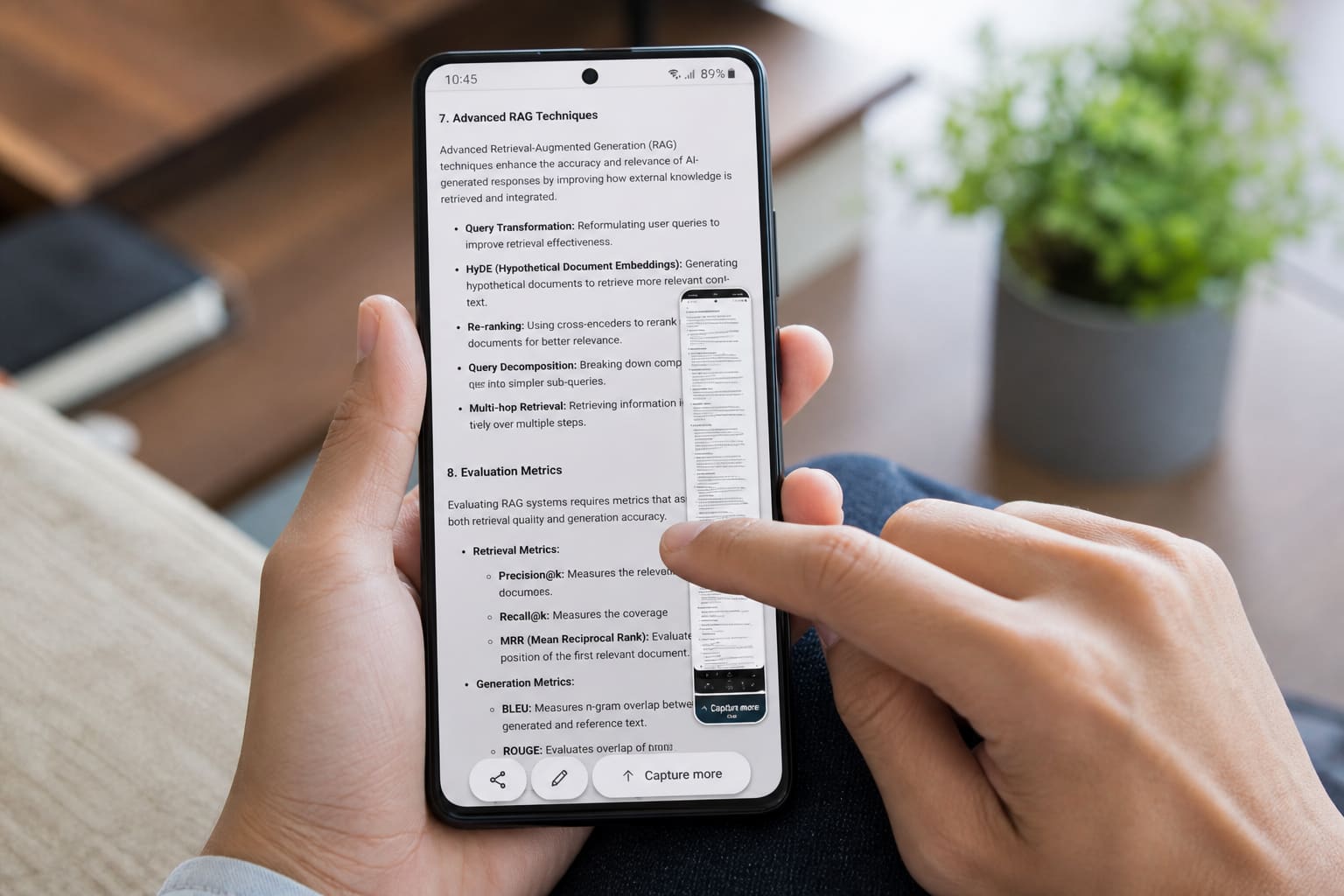
Scrolling screenshots stitch a long page into one image — perfect for receipts, chats, and articles.
General Method
- Take a normal screenshot (Power + Volume Down on most phones)
- Tap Scroll, Capture more, or the downward arrow in the toolbar
- Keep tapping until the page ends or you have enough
- Save / edit / share
Brand Notes
| Skin | Look for |
|---|---|
| Samsung | Scroll capture on toolbar |
| Xiaomi | Scroll button after screenshot |
| Tecno / Infinix | Extend / scroll capture |
| Stock Android | May vary by version / OEM |
Not every app allows scrolling capture (some banks block screenshots entirely).
Basic screenshots: Screenshot cheat sheet.
FAQ
Blurry or cut off?
Scroll slower; some webpages lazy-load — pause between captures.
Where are they saved?
Usually Gallery → Screenshots.
Sources / Verify With
- OEM screenshot help pages
Original Sen Gideons News Studio editorial.