Watch the full tutorial:
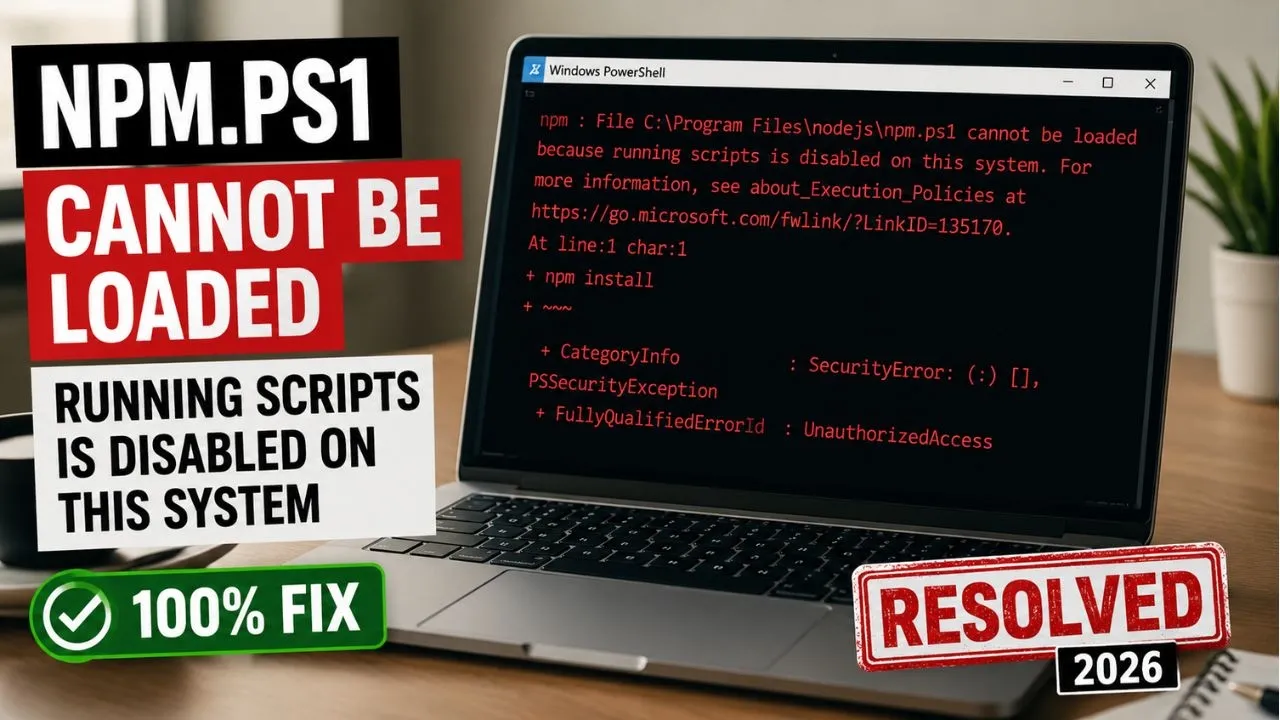
You install Node.js, open PowerShell, run npm, and Windows answers with this:
npm.ps1 cannot be loaded because running scripts is disabled on this system.
npm itself is fine. PowerShell is blocking npm.ps1, the script Windows uses to launch npm. The default execution policy on many PCs is Restricted, which refuses every script.
Allow your own scripts for your user only
- Click Start, type PowerShell, then choose Run as administrator. For this particular command, a normal window is often enough because the scope is your user. If Windows refuses the change, use the administrator window.
- Run:
Set-ExecutionPolicy -ExecutionPolicy RemoteSigned -Scope CurrentUser- Type Y and press Enter if PowerShell asks you to confirm.
- Close that window, open a new PowerShell, and run
npm -v.
RemoteSigned means scripts you write on this PC can run, and scripts downloaded from the internet must be signed. CurrentUser keeps the change on your account. It does not weaken the policy for every account on the PC.
Check the policy
In PowerShell:
Get-ExecutionPolicy -ListCurrentUser should show RemoteSigned. If LocalMachine is still Restricted, that is fine. The CurrentUser setting is the one npm needs.
If you would rather not change the policy
Open Command Prompt instead of PowerShell and run npm -v there. Command Prompt does not use npm.ps1, so the error never appears. This is a good check that Node installed correctly before you touch the policy.
What not to run
Do not set the policy to Unrestricted or Bypass for the whole machine. Those options turn the warning off for every script, including ones you did not write. RemoteSigned for the current user is the change this error needs.
Once npm -v prints a version number, go on to the Node.js install guide in this series if you have not confirmed the LTS setup yet. The editor guides for VS Code and Cursor come after the account tutorials and before the database ones.
Disclaimer
Sengideons.com does not host any files on its servers. All point to content hosted on third-party websites. Sengideons.com does not accept responsibility for content hosted on third-party websites and does not have any involvement in the same.