Watch the full tutorial:
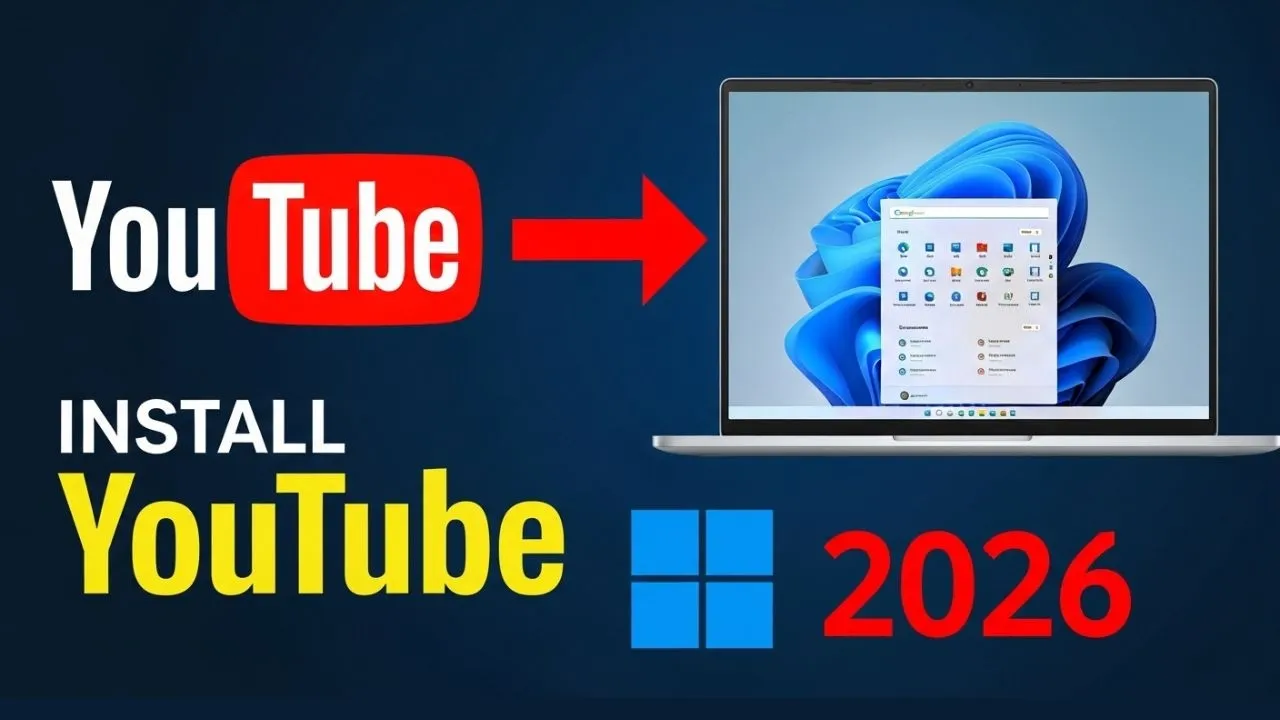
YouTube can run in its own window so a tutorial stays up while you follow the steps in another app. Chrome installs it the same way as Gmail and the other Workspace apps in this series.
Cast, save, and share
- Open Chrome and go to youtube.com. Sign in if you want your subscriptions in the app.
- Click the three-dot menu.
- Choose Cast, save, and share.
- Choose Install page as app and confirm.
The install icon in the address bar does the same job when Chrome shows it. Pin the window to the taskbar.
Playback, history, and playlists match the website, because this is the YouTube site in a separate frame. Remove it later from chrome://apps if you would rather keep video inside the browser.
Disclaimer
Sengideons.com does not host any files on its servers. All point to content hosted on third-party websites. Sengideons.com does not accept responsibility for content hosted on third-party websites and does not have any involvement in the same.