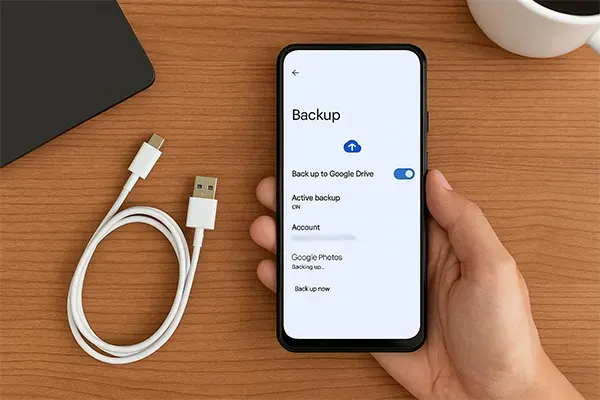
Backing up an Android phone before a reset, upgrade, or repair prevents the classic heartbreak of lost WhatsApp media, school documents, and MoMo-related screenshots. A good backup is boring and verified — not a single unchecked cloud tick.
What to back up
- Photos and videos
- WhatsApp chats (via official in-app backup to Google Drive / storage as offered)
- Documents and downloads
- Contact lists
- Two-factor authenticator exit codes / alternate 2FA methods
- Notes apps
Practical backup sequence
- Free space on phone and destination (Google account, computer, or SD where supported).
- Update WhatsApp, then run its official backup.
- Copy DCIM / Pictures / Documents to a computer or encrypted drive.
- Sync contacts to your Google account and verify on contacts.google.com.
- Export any offline PDFs you cannot lose.
- Confirm the backup files open or the cloud shows recent timestamps.
Before factory reset
- Remove accounts only after backups verify
- Note your Google email for the phone
- Have SIM PIN and device unlock ready for FRP realities after reset
- Do not reset on low battery
Data and power tips in Ghana
Large media backups eat data — use reliable Wi-Fi. Keep power stable; interrupted backups create false confidence.
Security
- Prefer backups you control for sensitive PDFs
- Do not hand your unlocked phone to roadside “download WhatsApp for me” helpers
- Encrypt external drives when possible
FAQ
Is Google Photos enough?
Great for images if sync is on and verified — still check WhatsApp and documents separately.
Will reset remove FRP?
Factory reset does not bypass Google account protection on many devices — know your credentials.
Can I back up to pendrive only?
Yes for files; apps/chat tooling may still need official cloud paths.
Back up photos, chats, contacts, and documents — then verify timestamps — before any reset or technician visit. A verified backup is the difference between a fresh phone and a lost year of memories.
Disclaimer
Sengideons.com does not host any files on its servers. All point to content hosted on third-party websites. Sengideons.com does not accept responsibility for content hosted on third-party websites and does not have any involvement in the same.