Screenshots are the fastest way to save MoMo receipts, error messages, and class notes. Each platform has slightly different gestures learn yours once and you stop borrowing other people’s phones to “just capture this.”
Windows
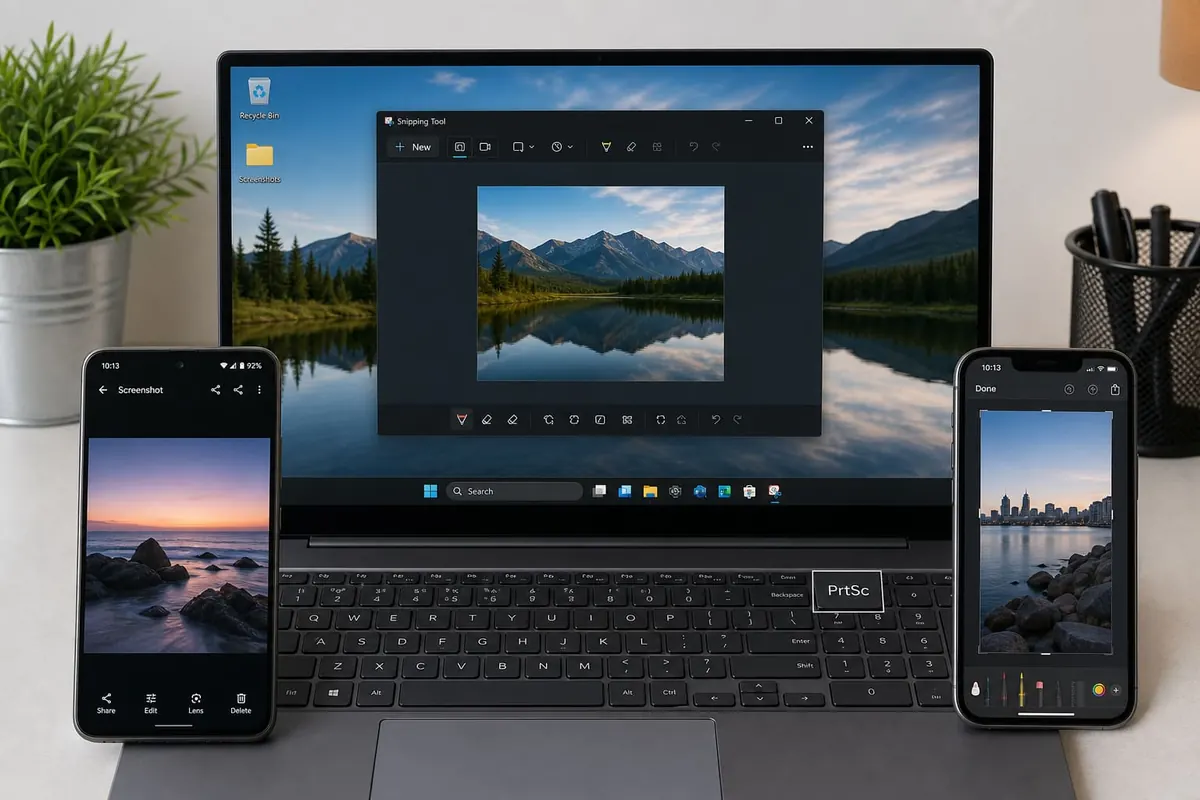
- PrtSc – full screen to clipboard (paste into Paint/WhatsApp desktop)
- Alt + PrtSc – active window
- Win + Shift + S – Snipping Tool region capture
- Win + PrtSc – saves a file to Pictures/Screenshots on many PCs
Android
- Usually Power + Volume Down together
- Some brands use Power + Volume Up or a palm-swipe gesture
- Check your phone’s tips app if the combo differs
- Use scrolling screenshot features for long pages when available
iPhone
- Face ID models: Side button + Volume Up
- Home button models: Side/Top + Home
- Edit/crop immediately from the thumbnail
- Full-page Safari captures exist in the markup flow for some pages
Privacy tips
- Crop out account numbers before posting publicly.
- Blur OTPs.
- Clear screenshot folders periodically – they fill storage.
- Back up important receipts – Android backup.
FAQ
Where do screenshots save?
Phone gallery/Screenshots album; Windows Pictures/Screenshots or clipboard depending on method.
Can I screenshot Netflix?
Protected content may show black frames – that is DRM, not your phone dying.
Why is my Android combo failing?
Timing – press simultaneously; check brand-specific gestures.
Memorise your device’s screenshot shortcut, crop sensitive data before sharing, and archive receipts you may need for disputes later.
Disclaimer
Sengideons.com does not host any files on its servers. All point to content hosted on third-party websites. Sengideons.com does not accept responsibility for content hosted on third-party websites and does not have any involvement in the same.