Laptop Keyboard Not Working: Fixes That Actually Help

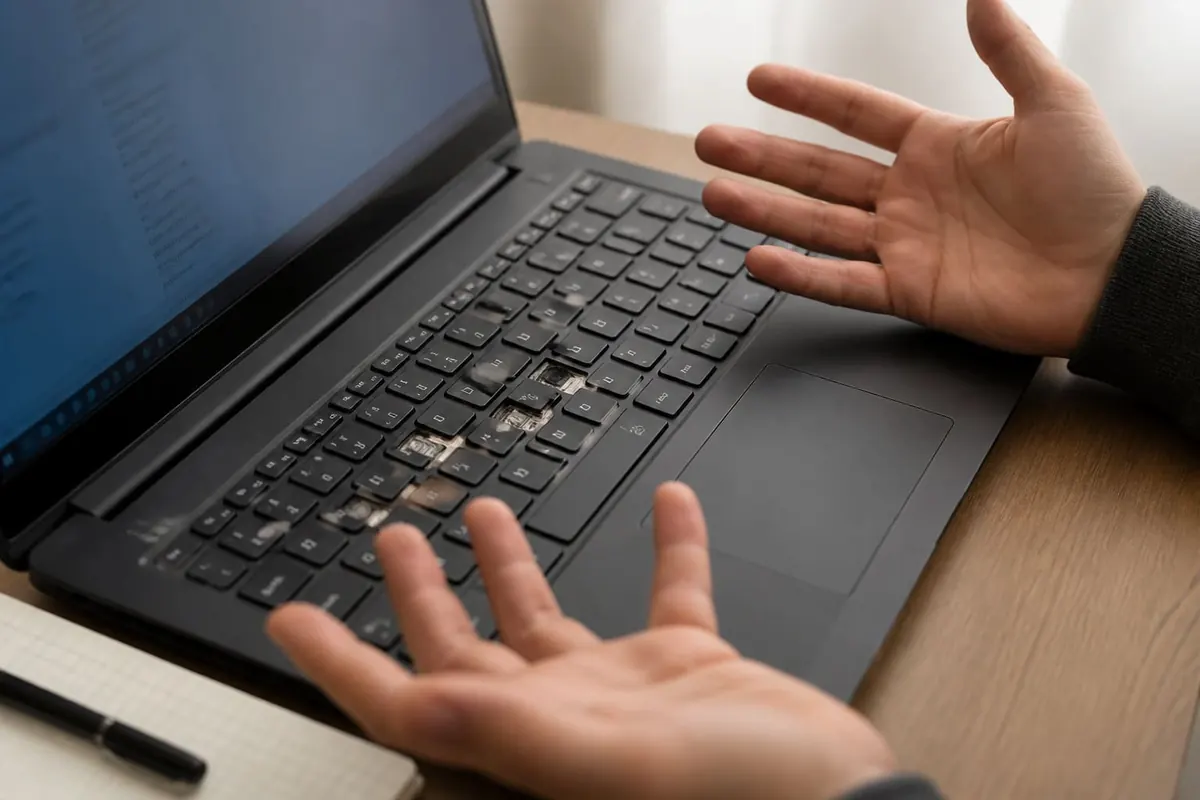
A dead laptop keyboard can be software, settings, or physical damage (especially after spills).

Work the steps in order. Most “dead phone” stories in Ghana start with a skipped backup or a roadside flash.

Quick Software Checks

  1. Restart the laptop
  2. Try an external USB keyboard — if external works, the OS is fine
  3. Settings → Accessibility → Keyboard — turn off Sticky/Filter Keys experiments
  4. Toggle Fn Lock / Num Lock (wrong layer looks “broken”)
  5. Update or roll back keyboard driver in Device Manager

Device Manager Path

  1. Right-click Start → Device Manager
  2. Keyboards → uninstall device → restart (Windows reinstalls)
  3. Check for error icons

Hardware / Spill Reality

SituationLikely fix
Liquid spillPower off immediately; technician clean — don’t keep using
Few keys deadDebris or membrane failure — external KB or replacement
All keys dead after dropCable/connector damage
Works in BIOS onlyWindows software conflict

Temporary Workaround

Use On-Screen Keyboard (Windows Search → OSK) or a cheap USB keyboard while you arrange repair.

Laptop Keyboard — FAQ

Can I replace just the keyboard?

Often yes on older models; many thin laptops need a skilled tech. Get a quote before buying parts.

Why are letters wrong (QWERTY vs AZERTY)?

Language/layout mismatch — Win + Space to switch input language.

Related performance issues

See How to Speed Up a Slow Windows Laptop.

Sources / Verify With

  • Microsoft keyboard troubleshooting
  • Your laptop brand’s service docs

If nothing works

Do not factory-reset first. Back the phone or PC up and write down the Google or Microsoft account. Hardware faults (charge port, digitizer, keyboard) belong in an authorised shop. Roadside “IMEI repair” and random flashing usually make the device worse.

Do this in order

Start with Restart the laptop, then Try an external USB keyboard — if external works, the OS is fine. Skipping ahead to a factory reset wipes WhatsApp, photos, and school files you cannot get back from a Kantamanto stall.

If only one app misbehaves, stay inside that app’s settings. If many apps fail after a cheap charger, heat, or a “cleaner” APK, treat it as a system problem. Back up first. Authorised service beats roadside flashing.

If you only remember three things from this page, make them Restart the laptop, Try an external USB keyboard — if external works, the OS is fine, and Settings → Accessibility → Keyboard — turn off Sticky/Filter Keys experiments. Write them on your phone before you factory-reset.

Extra checks

Will a “phone doctor” kiosk fix it faster?

Sometimes for a charge port. Often they flash unofficial software and you lose the Google account. Try Restart the laptop first. Back up before anyone wipes the device.

Safe to install a random APK that “repairs” this?

No. If Play Store cannot install it, that is a signal. Sideload only when you trust the file, and never from a WhatsApp blast.

Related reading

Original Sen Gideons News Studio editorial. Not legal advice.

Disclaimer

Sengideons.com does not host any files on its servers. All point to content hosted on third-party websites. Sengideons.com does not accept responsibility for content hosted on third-party websites and does not have any involvement in the same.

LEAVE A REPLY

Please enter your comment!
Please enter your name here
Are you human? Please solve:Captcha