Watch the full tutorial:
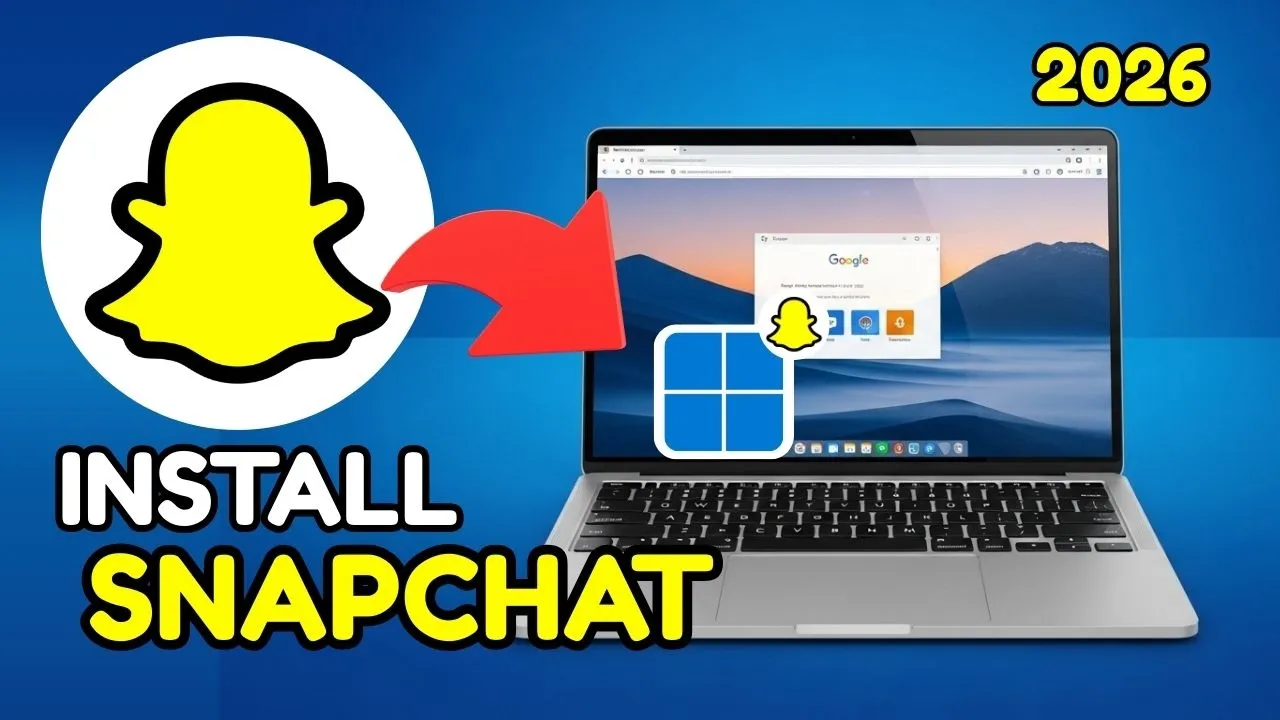
Snapchat on Windows can run in its own window so chats are not stuck inside a browser tab. Chrome installs the site as an app with the same menu used for the other desktop web apps in this series.
Cast, save, and share
- Open Chrome and go to web.snapchat.com.
- Sign in. Snapchat may show a QR code so you can approve the browser from the phone app. Approve it before you install, so the desktop app opens already signed in.
- Click the three-dot menu.
- Choose Cast, save, and share.
- Choose Install page as app and confirm.
If the first launch offers a desktop shortcut, accept it. Pin the icon to the taskbar after the window opens.
If the page will not install
- Finish the phone approval first. An unsigned web session sometimes will not offer Install.
- Use a normal Chrome window, not Incognito.
- Reload the page and open the three-dot menu again.
Remove it later from chrome://apps. The phone app is unchanged.
Disclaimer
Sengideons.com does not host any files on its servers. All point to content hosted on third-party websites. Sengideons.com does not accept responsibility for content hosted on third-party websites and does not have any involvement in the same.