Watch the full tutorial:
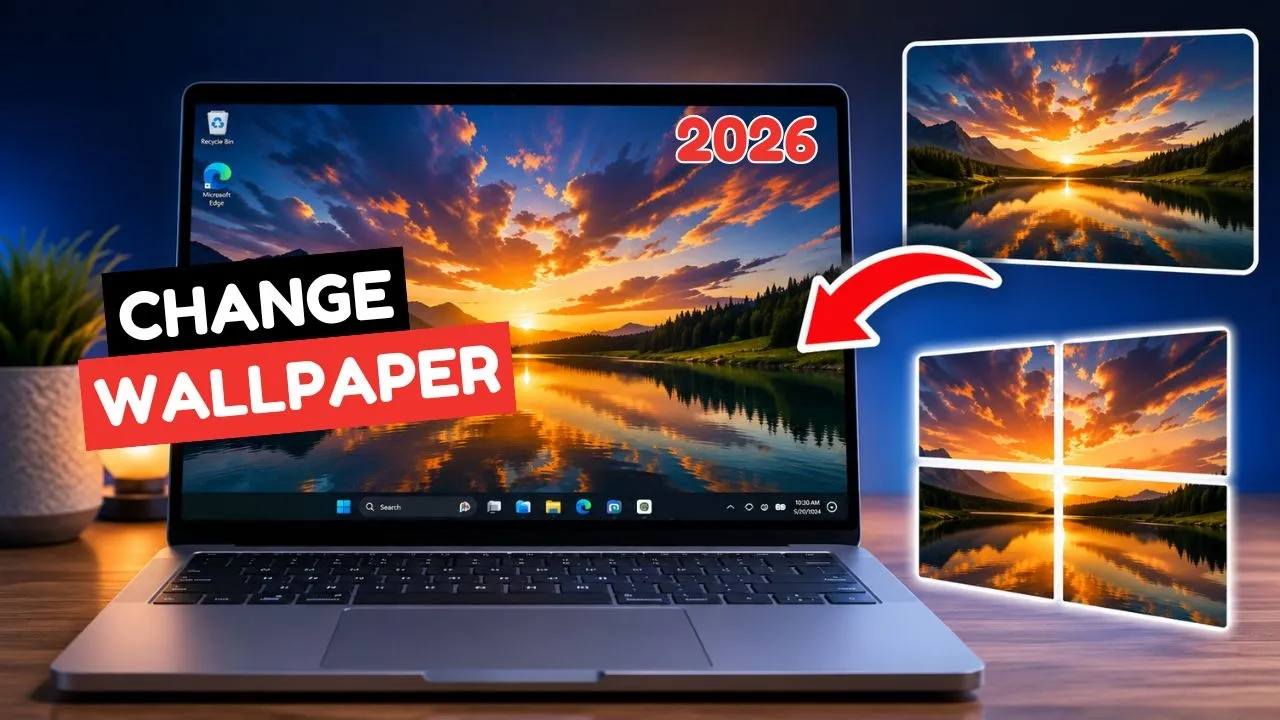
A desktop background is a small change that makes a Windows PC feel like yours. Windows 10 and Windows 11 both let you set one photo, and they both let you choose how that photo sits on the screen.
Set a photo from File Explorer
- Open the folder that holds the image.
- Right-click the photo.
- Choose Set as desktop background.
Windows applies it immediately. Use a JPG or PNG. A photo you are still downloading, or a picture inside a zip file, will not stick until the file is a normal image on the drive.
Change it from Personalization
- Right-click an empty area of the desktop.
- Choose Personalize.
- Open Background.
- Set the background type to Picture.
- Click Browse photos and pick the image.
On Windows 11 the same page also offers Windows spotlight, Solid color, and Slideshow. Slideshow walks through a folder of images on a timer. Point it at a folder you plan to keep, not Downloads, or the show breaks the next time you clean that folder.
Pick the right fit
Under the photo you will see a fit menu. Fill is the usual choice: the image covers the screen and Windows crops the edges if the photo ratio does not match the monitor. Use it when you want no empty bars.
- Fit shows the whole photo and may add bars.
- Stretch forces the photo to the screen and can distort it.
- Center places the photo in the middle at its real size.
- Span is for two monitors that should share one wide image.
- Tile repeats a small image across the desktop.
If the background snaps back
- A work or school PC can lock personalization. A message about your organization managing the setting means the account, not the photo, is the limit.
- Keep the image file where it is. If you delete or move the file after setting it, Windows can fall back to a plain color.
- On a laptop with a second screen, set the photo once, then check each display. Fit is chosen per setup, and a portrait monitor often needs Fill.
After the wallpaper, folder icons are the next piece of the same desktop. That guide is the following tutorial in this series.
Disclaimer
Sengideons.com does not host any files on its servers. All point to content hosted on third-party websites. Sengideons.com does not accept responsibility for content hosted on third-party websites and does not have any involvement in the same.