Developer options unlock advanced Android tools — useful for USB debugging, OEM unlocking research, and performance tinkering. They’re hidden for a reason.
Work the steps in order. Most “dead phone” stories in Ghana start with a skipped backup or a roadside flash.
How to Enable
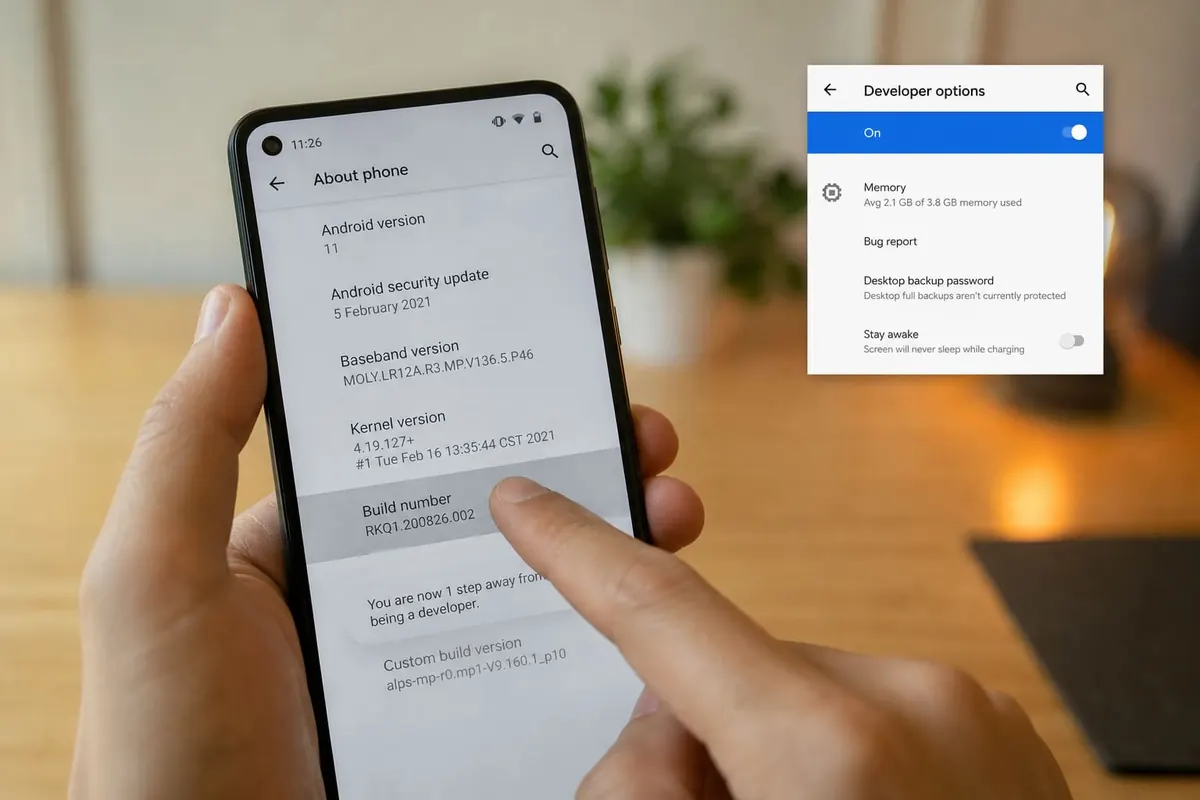
- Settings → About phone
- Find Build number
- Tap it 7 times until you see “You are now a developer”
- Go back → System (or Additional settings) → Developer options
- Toggle Developer options On
Samsung/Xiaomi/Tecno paths vary slightly (“Software information” under About).
Useful (Relatively Safe) Tweaks
| Setting | Use |
|---|---|
| USB debugging | Dev tools / some recovery apps |
| Show taps | Screen recordings / demos |
| Don’t keep activities | Testing only — can annoy daily use |
| Animation scale 0.5x | Feels snappier on older phones |
Leave These Alone Unless You Know Why
- OEM unlocking (factory reset risk / warranty considerations)
- Mock locations (unless you need it)
- Mobile data always active hacks
- Random “force GPU” toggles from TikTok tips
Turn It Off When Done
Toggle Developer options off if you enabled them only for one task. Unplug USB debugging on public PCs.
Developer Options — FAQ
Will this root my phone?
No. Developer options ≠ root. Rooting is a separate, riskier process.
Is USB debugging dangerous?
On your own PC, fine. On a stranger’s laptop, don’t enable it.
Phone feels faster after 0.5x animations?
It feels snappier — it doesn’t add real hardware speed.
Sources / Verify With
- Google Android developer options documentation
If nothing works
Do not factory-reset first. Back the phone or PC up and write down the Google or Microsoft account. Hardware faults (charge port, digitizer, keyboard) belong in an authorised shop. Roadside “IMEI repair” and random flashing usually make the device worse.
Do this in order
Start with Settings → About phone, then Find Build number. Skipping ahead to a factory reset wipes WhatsApp, photos, and school files you cannot get back from a Kantamanto stall.
If only one app misbehaves, stay inside that app’s settings. If many apps fail after a cheap charger, heat, or a “cleaner” APK, treat it as a system problem. Back up first. Authorised service beats roadside flashing.
If you only remember three things from this page, make them Settings → About phone, Find Build number, and Tap it 7 times until you see “You are now a developer”. Write them on your phone before you factory-reset.
Extra checks
Will a “phone doctor” kiosk fix it faster?
Sometimes for a charge port. Often they flash unofficial software and you lose the Google account. Try Settings → About phone first. Back up before anyone wipes the device.
Safe to install a random APK that “repairs” this?
No. If Play Store cannot install it, that is a signal. Sideload only when you trust the file, and never from a WhatsApp blast.
Related reading
- How to Enable Ultra Power Saving Mode on Android
- How to Factory Reset an Android Phone Safely (Without Losing Everything)
- How to Sideload APKs on Android Safely (and When You Shouldn’t)
- How to Update Android System Software Safely
Original Sen Gideons News Studio editorial. Not legal advice.
Disclaimer
Sengideons.com does not host any files on its servers. All point to content hosted on third-party websites. Sengideons.com does not accept responsibility for content hosted on third-party websites and does not have any involvement in the same.