Deleting a desktop shortcut does not uninstall software. Here’s how to remove programs properly on Windows.
Work the steps in order. Most “dead phone” stories in Ghana start with a skipped backup or a roadside flash.
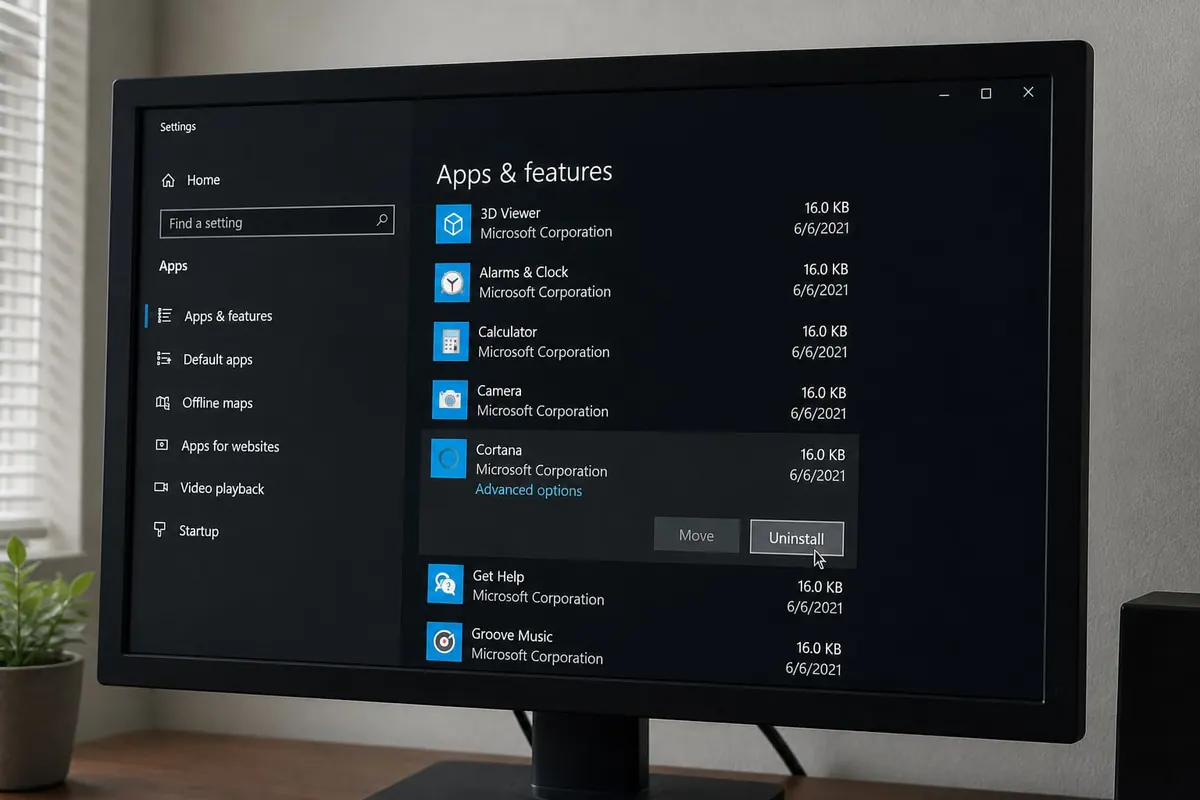
Method 1: Settings (Windows 10/11)
- Settings → Apps → Installed apps
- Find the program → ⋯ → Uninstall
- Follow the uninstaller prompts
- Restart if asked
Method 2: Control Panel
- Control Panel → Programs and Features
- Select program → Uninstall
Useful for older desktop apps.
After Uninstall Cleanup (Optional)
- Check
C:\Program FilesandProgram Files (x86)for leftover folders — delete only if empty/junk and you’re sure - Check Startup apps — disable leftovers
- Empty Recycle Bin
Avoid aggressive “force uninstall” tools from random sites.
Built-in Apps
Some Windows apps reinstall via Store updates. You can reset/uninstall many from Installed apps; a few system components can’t be removed safely.
Uninstall Windows Programs — FAQ
Why is Uninstall greyed out?
Work/school policies, missing admin rights, or a broken installer. Try admin account or the vendor’s cleanup tool.
Does uninstall free a lot of space?
Games and creative suites yes. Tiny utilities barely move the needle — clear Downloads/cache too.
Related slow-PC tip
See How to Speed Up a Slow Windows Laptop.
Sources / Verify With
- Microsoft uninstall or remove apps help
If nothing works
Do not factory-reset first. Back the phone or PC up and write down the Google or Microsoft account. Hardware faults (charge port, digitizer, keyboard) belong in an authorised shop. Roadside “IMEI repair” and random flashing usually make the device worse.
Do this in order
Start with Settings → Apps → Installed apps, then Find the program → ⋯ → Uninstall. Skipping ahead to a factory reset wipes WhatsApp, photos, and school files you cannot get back from a Kantamanto stall.
If only one app misbehaves, stay inside that app’s settings. If many apps fail after a cheap charger, heat, or a “cleaner” APK, treat it as a system problem. Back up first. Authorised service beats roadside flashing.
If you only remember three things from this page, make them Settings → Apps → Installed apps, Find the program → ⋯ → Uninstall, and Follow the uninstaller prompts. Write them on your phone before you factory-reset.
Extra checks
Will a “phone doctor” kiosk fix it faster?
Sometimes for a charge port. Often they flash unofficial software and you lose the Google account. Try Settings → Apps → Installed apps first. Back up before anyone wipes the device.
Safe to install a random APK that “repairs” this?
No. If Play Store cannot install it, that is a signal. Sideload only when you trust the file, and never from a WhatsApp blast.
Related reading
- Chromebook vs Windows Laptop for Students in Ghana
- How to Create a Windows USB Installer (Bootable USB Guide)
- How to Format a USB Drive for Windows and Phones (FAT32, exFAT, NTFS)
- How to Recover Deleted Files on Windows (Recycle Bin & Beyond)
Original Sen Gideons News Studio editorial. Not legal advice.
Disclaimer
Sengideons.com does not host any files on its servers. All point to content hosted on third-party websites. Sengideons.com does not accept responsibility for content hosted on third-party websites and does not have any involvement in the same.