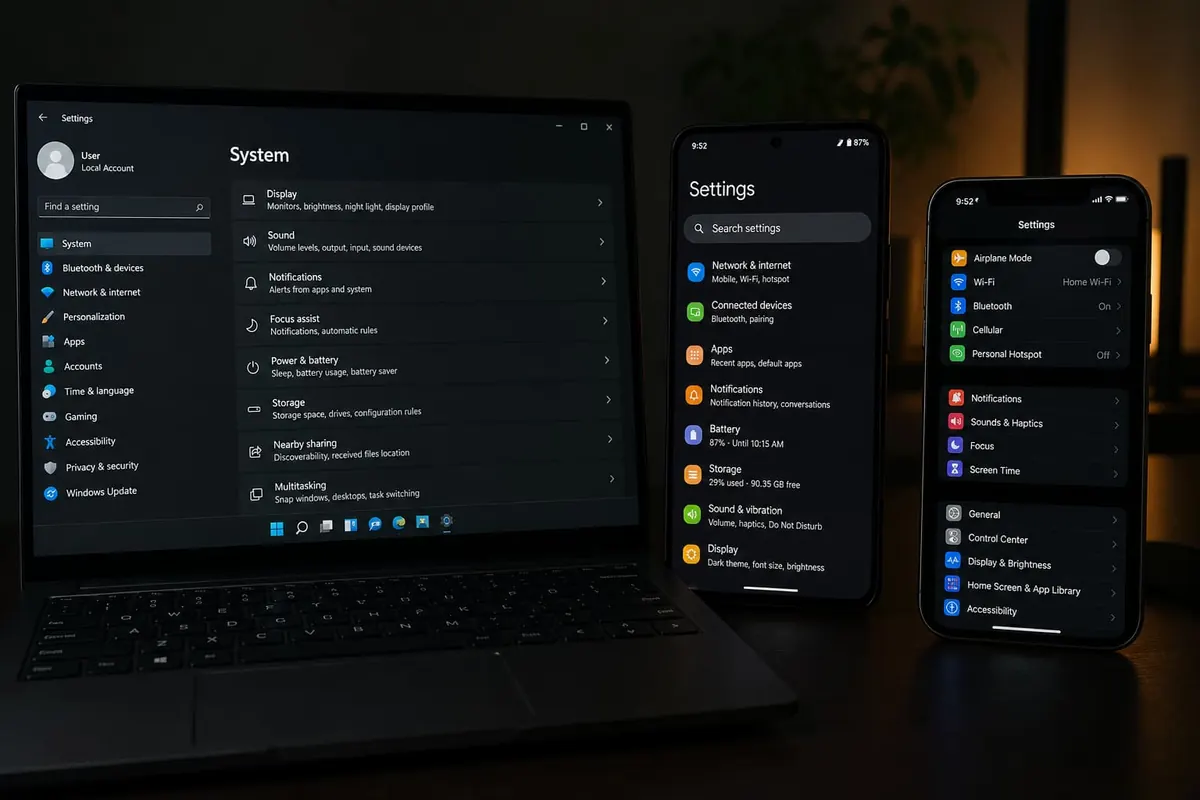
Dark Mode reduces bright white interfaces at night and can feel easier on the eyes. Here’s how to turn it on across Windows, Android, and iPhone — plus when it helps battery.
Windows
- Settings → Personalisation → Colours.
- Choose Dark under “Choose your mode” (or use custom for default app/windows modes).
- Some apps have their own theme toggles (browsers, Office).
Android
- Settings → Display → Dark theme (wording varies by Samsung/Xiaomi/Tecno).
- Schedule Dark theme for sunset-to-sunrise if available.
- Individual apps may need their own dark setting.
- Pair with bedtime habits via Digital Wellbeing.
iPhone
- Settings → Display & Brightness → Dark.
- Or Control Center → long-press Brightness → Dark Mode.
- Optional: Automatic schedule.
Battery notes
- OLED/AMOLED screens can save some power with dark pixels
- LCD panels see less battery benefit
- Brightness still dominates drain — lower it
- For emergencies see Ultra Power Saving
FAQ
Does Dark Mode fix insomnia?
It can reduce glare; sleep still needs habits — sleep tips.
Why is an app still white?
App-level theme not following system.
Is pure black better?
Some OLED “AMOLED black” themes exist; readability matters more than purity.
Flip system Dark Mode, schedule it for nights, and fix app-level exceptions. Comfort first; battery savings are a bonus on OLED.
Disclaimer
Sengideons.com does not host any files on its servers. All point to content hosted on third-party websites. Sengideons.com does not accept responsibility for content hosted on third-party websites and does not have any involvement in the same.